Lab 5. Secure access with Microsoft Entra Suite
Scenario
Contoso still runs a VPN. Once a laptop is "on the network" it can reach every internal
server, and internet browsing from that laptop is invisible to the security team. With
Microsoft Entra Suite, network access becomes another identity decision: Private
Access publishes internal apps one at a time behind Conditional Access, and Internet
Access filters web traffic per user through an identity-aware secure web gateway. Both
are delivered by Global Secure Access (GSA) and its lightweight client, which is
already installed on LAB-PC-NN.
Objectives
- Read the Global Secure Access dashboard and traffic forwarding profiles
- Reach an internal web app through Private Access from the managed desktop, and prove it is unreachable from your laptop
- Watch Internet Access block a web category and find both flows in the traffic logs
- Require a compliant network in Conditional Access and see the difference
- Author your own web content filtering policy and security profile
- Explain how Zero Trust Network Access differs from a VPN
Instructor note
The tenant already has GSA activated, the three forwarding profiles assigned to
Lab-Users-All, the Private Access app Lab-Intranet published through a Private
Network connector, and the baseline filtering policy BASE-Block-Gambling linked to
BASE-Lab-Profile and Conditional Access BASE-GSA-Internet-Access. Pods read these;
they do not change them.
Task 1. Read the Global Secure Access configuration
Admin window
- In the Entra admin center left menu select Global Secure Access.
- Select Dashboard. Read the tiles: users and devices connected, traffic by profile, top destinations.

-
Select Connect Traffic forwarding. Three profiles are listed. For each, note whether it is enabled and which group is under User and group assignments (select View or Edit assignments to see it, then close without changes):
Profile Traffic it captures Enabled? Assigned to Microsoft 365 access profile Exchange, SharePoint, Teams, Entra sign-in Private access profile Apps published with Private Access Internet access profile Everything else

- Select Applications Enterprise applications.
- Select Lab-Intranet.
- In the app's left menu select Network access properties. Read
the application segment: Destination type FQDN, Destination
intranet.lab.internal, Ports 80, Protocol TCP, and the Connector groupLab-Connectors.

Expected result
All three profiles are enabled and assigned to Lab-Users-All, which includes
lab-userNN. Lab-Intranet publishes one internal host name.
Task 2. Reach the intranet app through Private Access
Lab desktop
- Switch to the
LAB-PC-NNsession you left open in Lab 4 (reconnect fromhttps://windows.cloud.microsoftif it closed). - In the Windows taskbar, near the clock, select the ^ (show hidden icons) arrow. Hover over the Global Secure Access icon (a blue shield). It says Connected.
- Select the icon. The client window opens. Select Connections. The status is Connected and the Microsoft 365, Private and Internet channels each show a connected state. Close the window.

- Open Microsoft Edge on the desktop and go to http://intranet.lab.internal.

Expected result
The Contoso intranet page loads. There is no VPN, no public DNS record for that host name, and the server has no public IP address. The GSA client recognised the host name from the Private Access profile, sent the request through Microsoft's edge to the connector, and Conditional Access checked your identity on the way.
- User window Now on your own laptop, in any browser tab, open the same address http://intranet.lab.internal.
Expected result
The browser reports it cannot find or reach the site (Hmmm... can't reach this page or This site can't be reached). There is nothing to attack: the application is not on the internet at all.
Task 3. See Internet Access block a category
Lab desktop
- In Edge on the lab desktop go to a well-known gambling site, for example https://www.bet365.com.

Expected result
Edge shows Hmmm... can't reach this page (HTTPS traffic to a blocked category is reset). An HTTP site in the same category shows a DeniedTraffic page instead. The block came from BASE-Block-Gambling, which the instructor linked to all lab users.
- In the same browser go to https://www.microsoft.com.
Expected result
The page loads normally. Filtering is per category and per user, not a blanket block.
Task 4. Find both flows in the traffic logs
Admin window
- Select Global Secure Access Monitor Traffic logs.
- Select Add filter, choose User principal name, type lab-userNN@aurnis.dev, and select Apply. Logs can lag by a couple of minutes; select Refresh if needed.
- Find one row whose Destination FQDN is
intranet.lab.internaland one for the gambling site. Select each row and read the details panel.

-
Fill in the table:
Destination Traffic type Action Device name Policy or category intranet.lab.internal Private (gambling site) Internet
Expected result
The intranet row shows Allowed, traffic type Private, and your desktop name. The gambling row shows Blocked with the Gambling category. Every row carries the user, the device and the policy that decided.
Task 5. Require a compliant network for SharePoint
Admin window
Global Secure Access also lets Conditional Access ask "did this request come through our secure edge?" That is the compliant network condition. It stops token theft: a stolen token replayed from anywhere outside the edge is refused.
- Select Protection Conditional Access Policies, then + New policy.
- In Name type CA-NN-Compliant-Network.
- Select Users, choose Select users and groups, tick Users and groups, search for Lab-Users-NN, tick it, select Select.
- Select Target resources. Keep Resources (formerly cloud apps), choose Select resources, select None, search SharePoint, tick Office 365 SharePoint Online, select Select.
- Select Network (under Assignments; in older layouts it is Conditions, Locations).
- Set Configure to Yes.
- On the Include tab select Any network or location.
- On the Exclude tab select Select networks and locations, then tick All Compliant Network locations. Select Select.

- Under Access controls select Grant, choose Block access, select Select.
- Under Enable policy select On.
-
Check the summary, then select Create.
Section Must show Name CA-NN-Compliant-NetworkUsers 1 group: Lab-Users-NNTarget resources Office 365 SharePoint Online Network Include Any network or location; Exclude All Compliant Network locations Grant Block access Enable policy On Read it as: block SharePoint from any network except the compliant network. Traffic arriving through the GSA client is on the compliant network and is exempt.
Check before you select Create
Users must be your group only, resource must be SharePoint Online only, and the exclusion for All Compliant Network locations must be ticked. Without the exclusion this policy blocks SharePoint for your user everywhere, including the lab desktop.
Wait for propagation
Wait 1 to 2 minutes. Test in fresh windows.
- User window On your laptop, in a fresh window, open
https://aurnistech.sharepoint.com/sites/Day1Laband sign in.
Expected result
Blocked. In the sign-in log the Conditional Access tab shows
CA-NN-Compliant-Network as Failure (and the
compliant-device policy from Lab 4 fails too). The Network details show
Through Global Secure Access: No.
- Lab desktop On
LAB-PC-NNopen the same site in Edge.
Expected result
Allowed. The matching sign-in log entry shows Through Global Secure Access: Yes and both of your policies as Success.
Task 6. Author your own web filtering policy
Admin window
Now build the same kind of control the instructor built, scoped to your own user. This is configuration practice: a new security profile is carried inside the user's access token, so first enforcement can take up to 90 minutes. You will not see this one block anything during the session, and that is expected.
- Select Global Secure Access Secure Web content filtering policies.
- Select + Create policy.
- Name: WCF-NN-Block-Social. Action: Block. Select Next.
- Select + Add rule. Name: Social networking. Destination type: webCategory. In Search, type Social, tick Social Networking, select Add.
- Select Next, then Create policy.
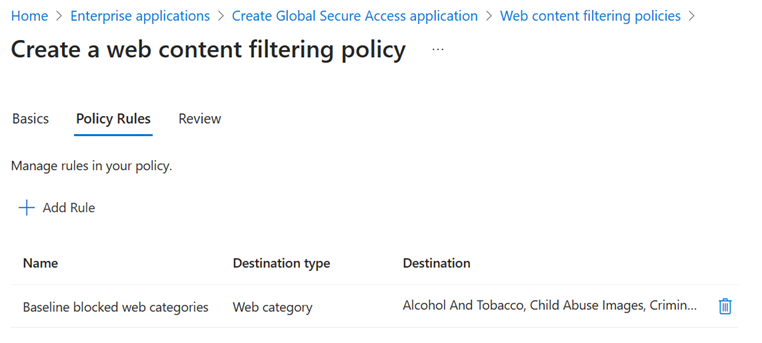
- Select Secure Security profiles, then + Create profile.
- Profile name: SP-NN. State: Enabled. Priority: 10NN (for example 1007 for pod 07, so every pod's priority is unique). Select Next.
- Select + Link a policy, Existing policy. Choose WCF-NN-Block-Social, Priority 100, State Enabled, select Add.
- Select Next, then Create a profile.

- Attach it with Conditional Access in report-only mode so it can never lock anyone out: select Protection Conditional Access Policies, + New policy.
- Name: CA-NN-Internet-Profile.
- Users: your group Lab-Users-NN.
- Target resources: in the drop-down choose Global Secure Access (or Resources, then All internet resources with Global Secure Access), and select Internet traffic.
- Session: tick Use Global Secure Access security profile, choose SP-NN, select Select.
- Enable policy: Report-only. Select Create.

Expected result
Three objects exist with your number: a filtering policy, a security profile, and a report-only Conditional Access policy that links them to your user. If the tenant stays available after the session, switch the policy to On and test after 90 minutes.
VPN versus Zero Trust Network Access
| Traditional VPN | Zero Trust Network Access with Entra | |
|---|---|---|
| What you get after connecting | The whole network | One application at a time |
| Identity check | At connection time | Every request, with Conditional Access and continuous access evaluation |
| Device check | Weak or none | Compliance is a first-class condition |
| Internet traffic | Backhauled or invisible | Filtered per user at Microsoft's edge |
| Attack surface | VPN gateway on the internet | No inbound ports; connectors dial out |
| Logs | Connection events | Per user, per app, per destination |
Decision logic: IF user is valid AND MFA is phishing-resistant AND device is compliant AND request is on the compliant network AND the app is authorised THEN allow. "On the network" is never a reason to trust.
Reflection
- The same user reached the intranet app from the managed desktop and could not even resolve it from a laptop. What did the VPN model give attackers that this model does not?
- Which Conditional Access signal would still stop an attacker who stole a valid session token from the managed desktop and replayed it from their own machine?
- Contoso is about to deploy Copilot and AI agents that read SharePoint and Teams. Why should identity, device and network governance be in place before that happens?
Checklist
- Three forwarding profiles read and recorded
- Intranet app reached from the lab desktop, unreachable from your laptop
- Gambling category blocked, microsoft.com allowed
- Both flows found in traffic logs
-
CA-NN-Compliant-Networkproves compliant network enforcement -
WCF-NN-Block-Social,SP-NNand the report-only policy created
Next: Lab 6: AI-ready data access if your instructor includes it, otherwise Wrap-up.